Jack's Server
Welcome to the site!
Below are instructions for getting signed in and learning your way around.
Changing your password
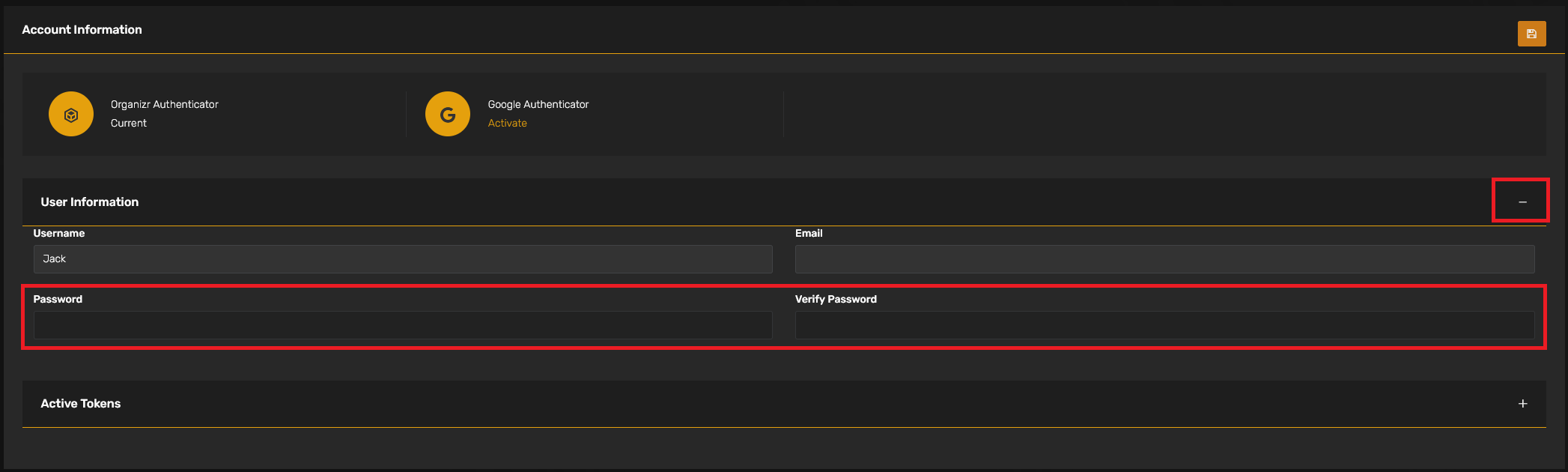
The first time you sign in, you'll want to get your password changed. To do this, navigate to your username, then select "Account Settings."

Next, expand the "User Information" section to update your password.
Homepage
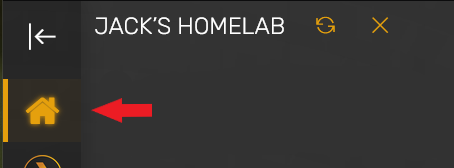
The homepage is where you land when first logging into the site. If you leave, you can return here by selecting the icon shaped like a house in the top-left corner of the screen.
The homepage will display recently added media, will show the status of the server (green if it is online, red if it is offline), and some other viewing stats.
Tabs
The left side of the screen will have tabs for different parts of the site. Each tab is explained below:
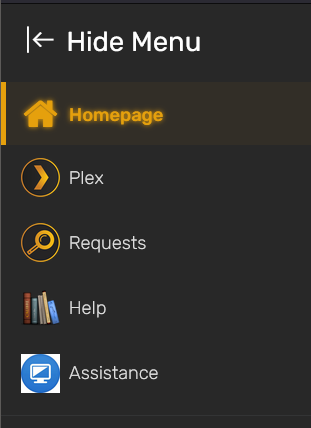
Plex
Here, you can log into your Plex account from within the site to watch Plex or even to see what is already available on the server. When you sign in, it will give you a warning that you're not signing into the main Plex website, but that is expected. That is just there so you know you're signing in through my site instead of the normal Plex site.
Requests
This section is for you to request movies or TV shows that you'd like added to Plex. There is an entire page about using this feature that can be found here if you'd like to learn more.
Help
The Help section will take you to the site's wiki. I've tried to include helpful instructions and explanations here, but feel free to reach out to me directly if there's anything I've left out.
Assistance
If you haven't already used this, you probably won't have to. This is a section with instructions for installing a screen-sharing client, in case I need to help anyone with getting logged in or any other computer issues.
That's the quick tour! If you have any questions, feel free to poke around the wiki for more info or shoot me an email. Happy streaming!
Setting up Plex
You'll need a Plex account of your own for me to share my library with you. You can create a Plex account here if needed. Once created, I can share my library with you. Follow the steps below to accept the invitation and configure Plex.
Accepting the Invitation
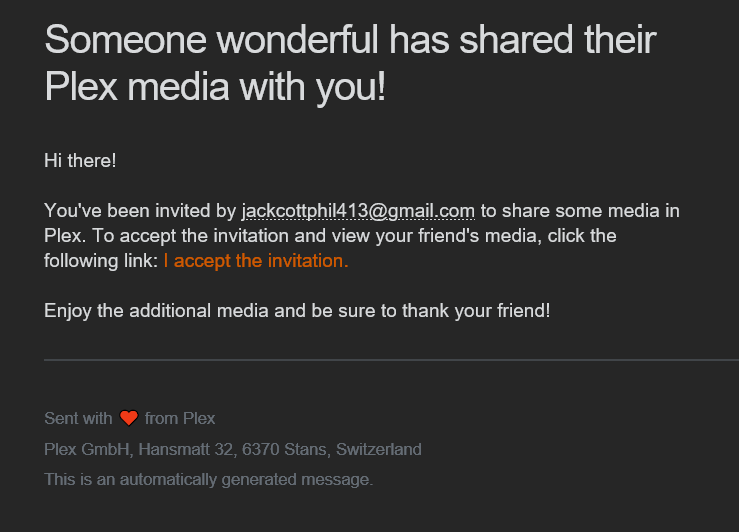
You'll receive the invitation via an email that looks like this:
Configuring your home page
Once you accept the invitation, you'll have all my libraries on your Plex account, but they will not be on your home screen. To add them to your home screen, click the "More" option on the left edge of your screen.
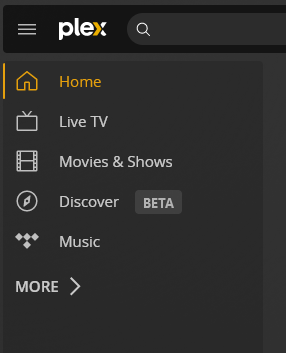
Next, you'll see the libraries I've shared with you, as well as the default options that come from Plex. My recommendation is to remove the media from Plex and only have my shared libraries there to prevent confusion. To add/remove, hover over the library name, click the three dots, and select "pin"/"unpin" from the options.
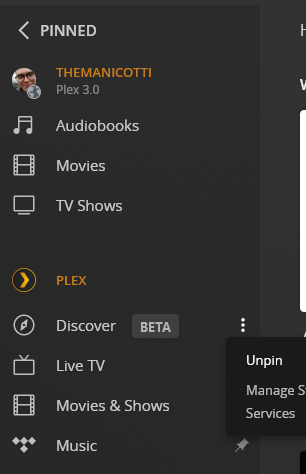
When you're done, your home screen should look like this:

Enabling original quality streaming
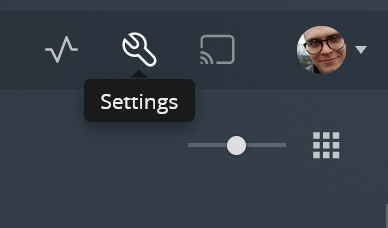
You will have the best experience if you stream original quality. Unfortunately, by default, you're not able to automatically play all videos at original quality. To fix this, navigate to Settings
Then Select "Quality"
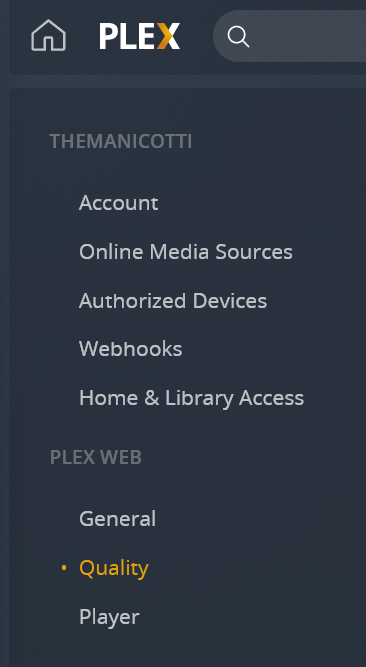
Make sure the options match these:
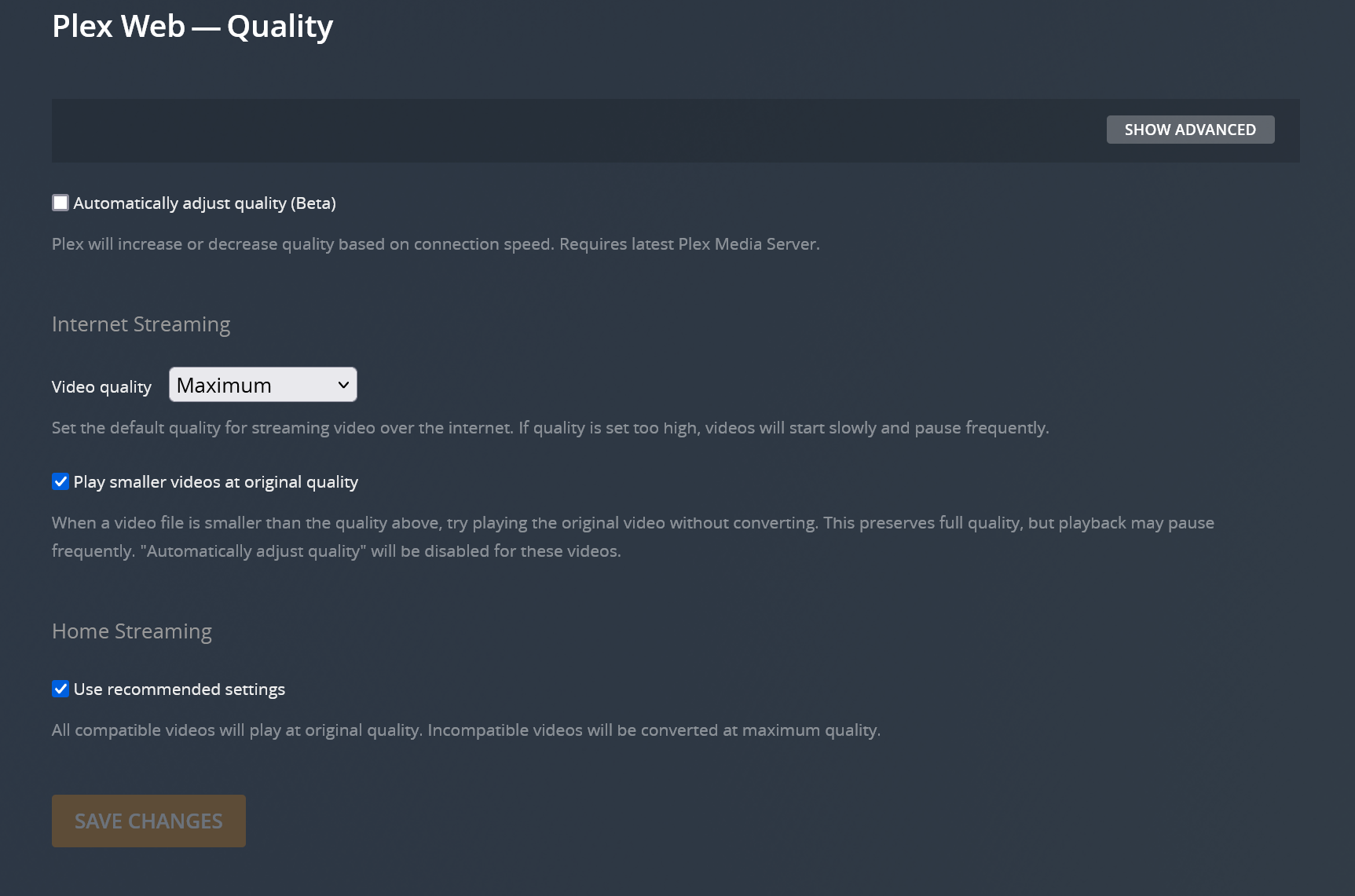
After that, your videos should default to original quality.
NOTE: These settings are in different places on different versions of the Plex app. If you're watching on a smart TV, tablet, or streaming device, the settings might be in a different place or have a slightly different name.
Requests Tab
Here you'll find details regarding the Requests tab.
Getting started
When you first sign in, you'll be greeted with a login page. Your username and password will be the same as for the regular site (but they do NOT sync, so if you change your password for the main site, you'll need to manually change it here as well).
Once signed in, you'll see a screen that looks similar to this:
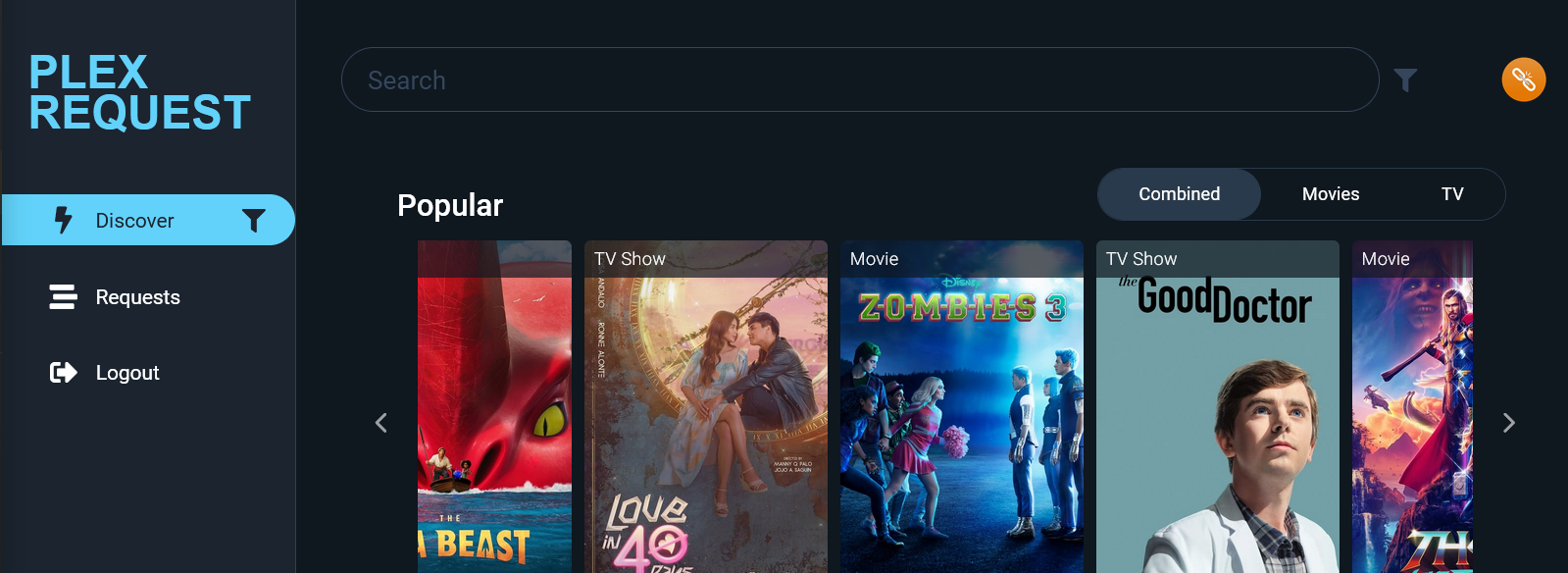
To request something be added to Plex, you can either search using the search bar, or browse the categories on the site. Once you find something you want to request, click on the poster and then click request on the item's description page.

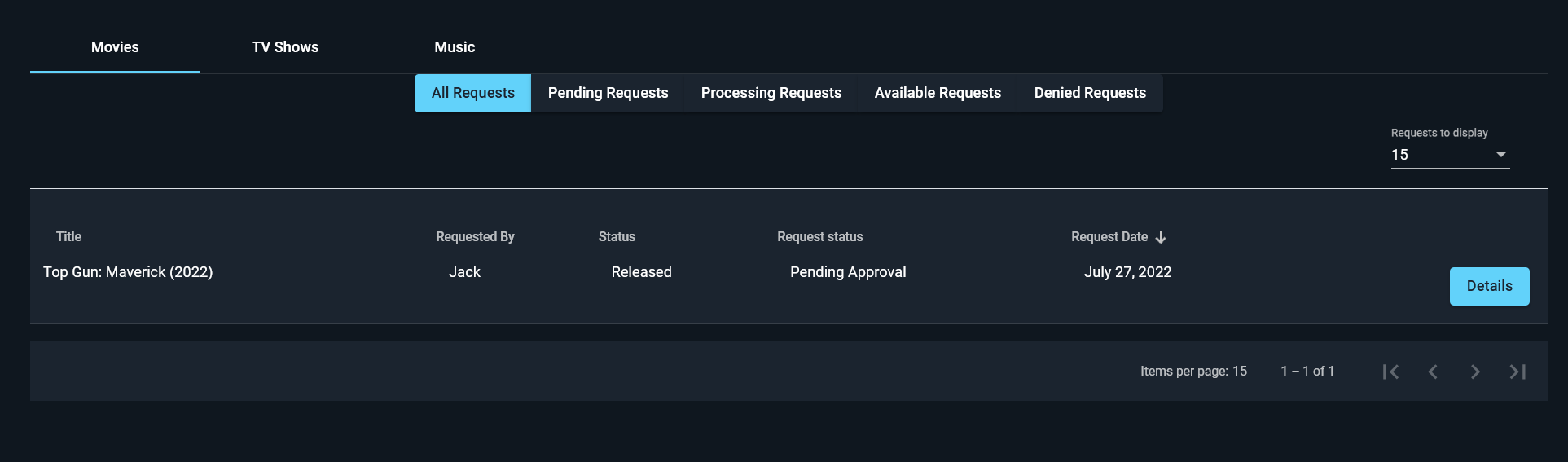
After the request has been submitted, you can check the status of your request by clicking "Requests" on the left edge of the screen. This will show you your pending, approved, denied, and available requests. When you request, it will be marked as "pending" and will send me an email letting me know about the request. After that, if the request is approved, it will be moved to "processing" while it downloads and you will receive an email letting you know it was approved. When the item has finished downloading and is on Plex, it will be labeled "available."
Changing your password
Unfortunately, the password you use for the main site and the requests portion do not sync. However, it is very simple to change your Requests password. To do so, click the chain-link icon in the top-right to view your profile.
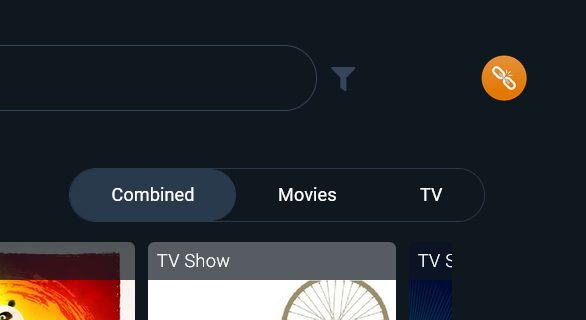
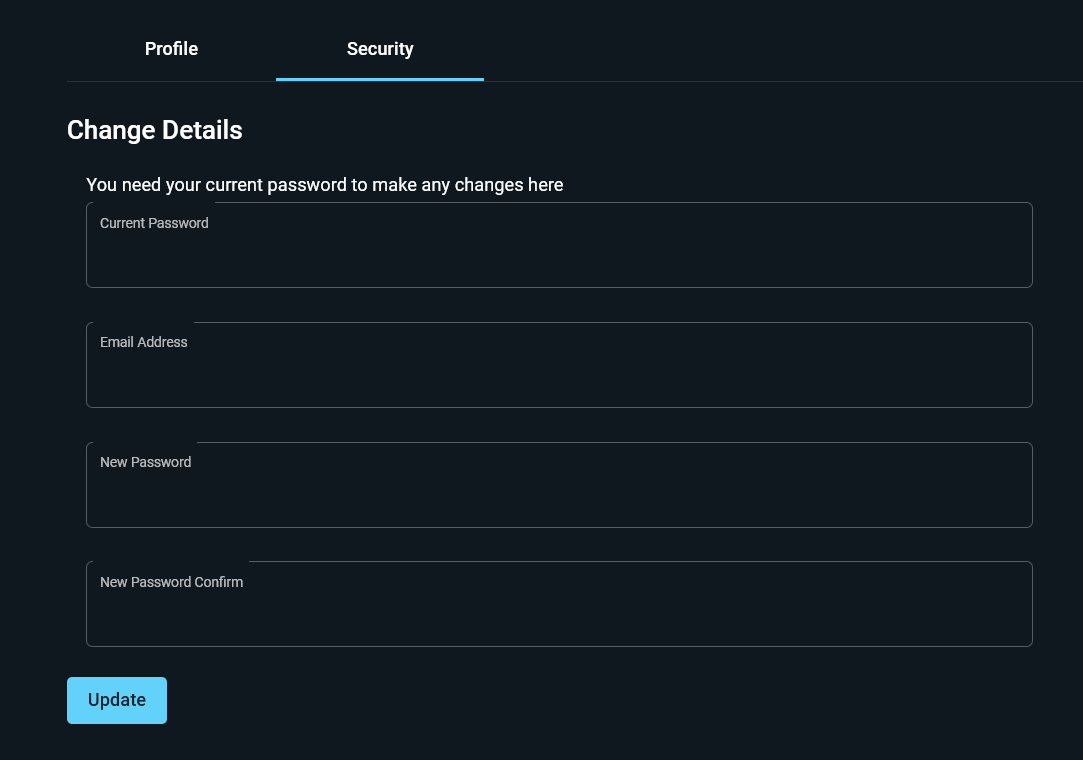
On your profile screen, select the "security" tab and enter your previous password and your new password, then click "update."
Listening to Audiobooks (iOS)
For listening to audiobooks, I recommend using a different app called Prologue instead of the Plex app. The Plex app is great, but it was not made to play audiobooks. As a result, it will not keep track of your progress or allow you to change playback speed. Prologue is free and has lots of cool features to make the experience better. Follow the steps below to get started.
Setting up Prologue
1. Download the Prologue app from the iOS App Store: https://apps.apple.com/us/app/prologue/id1459223267
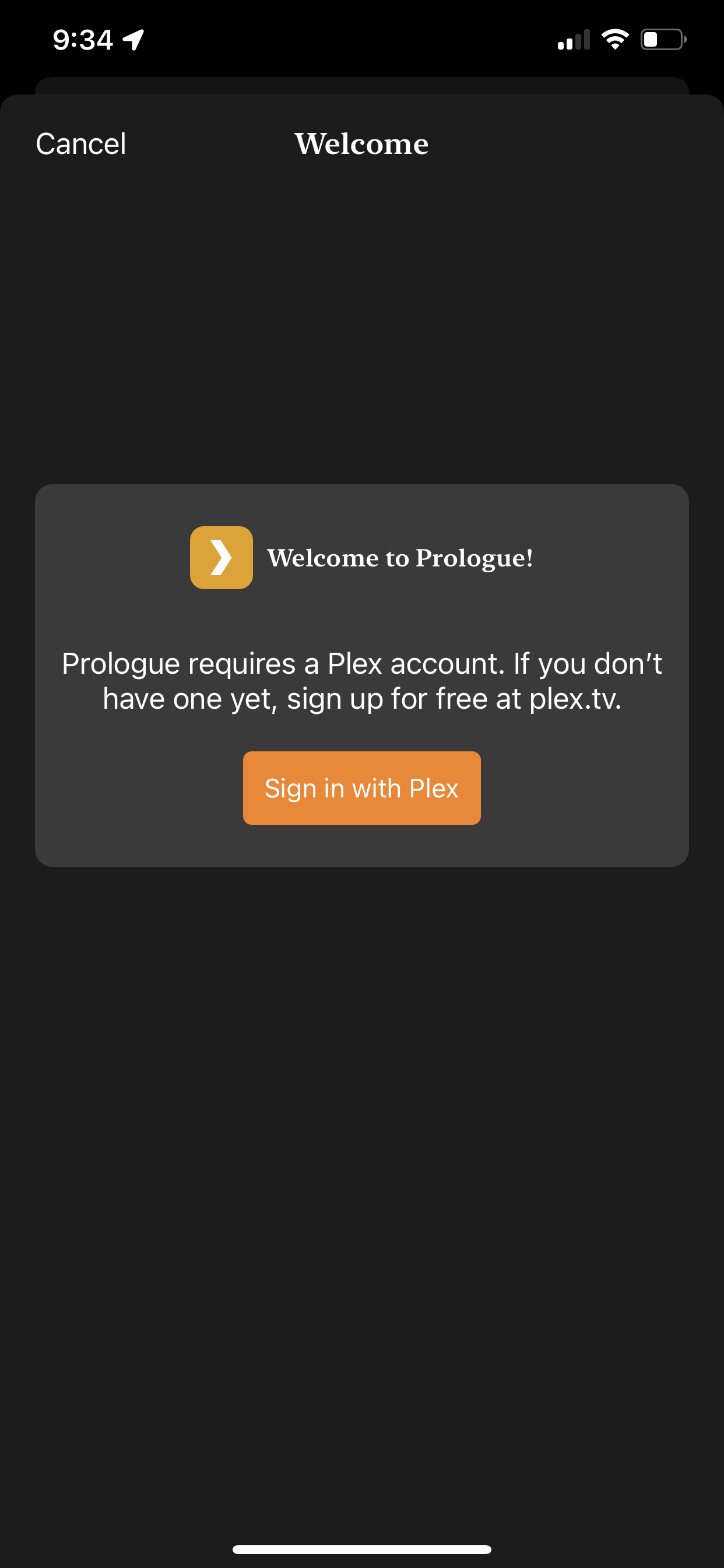
2. Once installed, launch the app and select "Sign in with Plex"
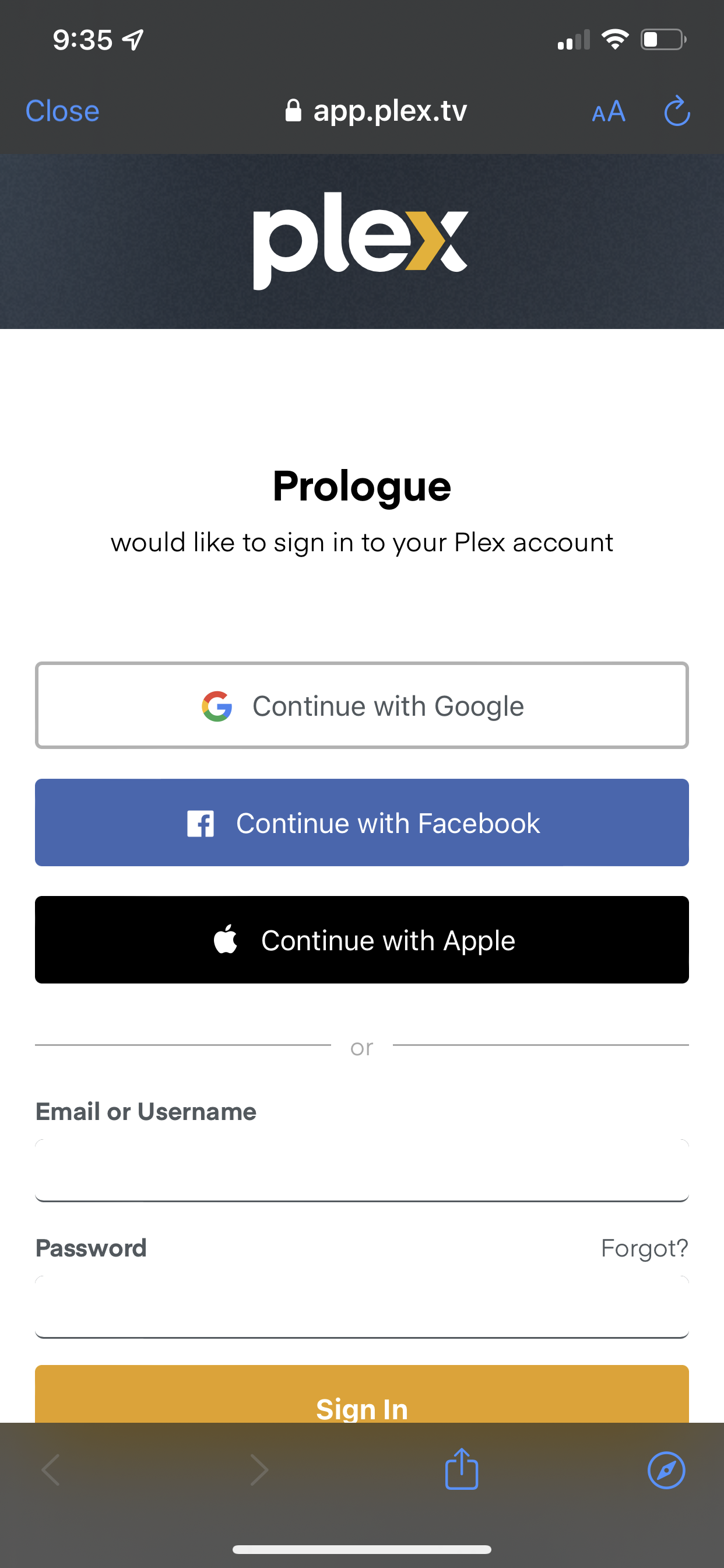
3. Next, sign into your Plex account
4. Once signed in, choose "select home user" and select the user profile that you'd like to use, then go back and select "Done"
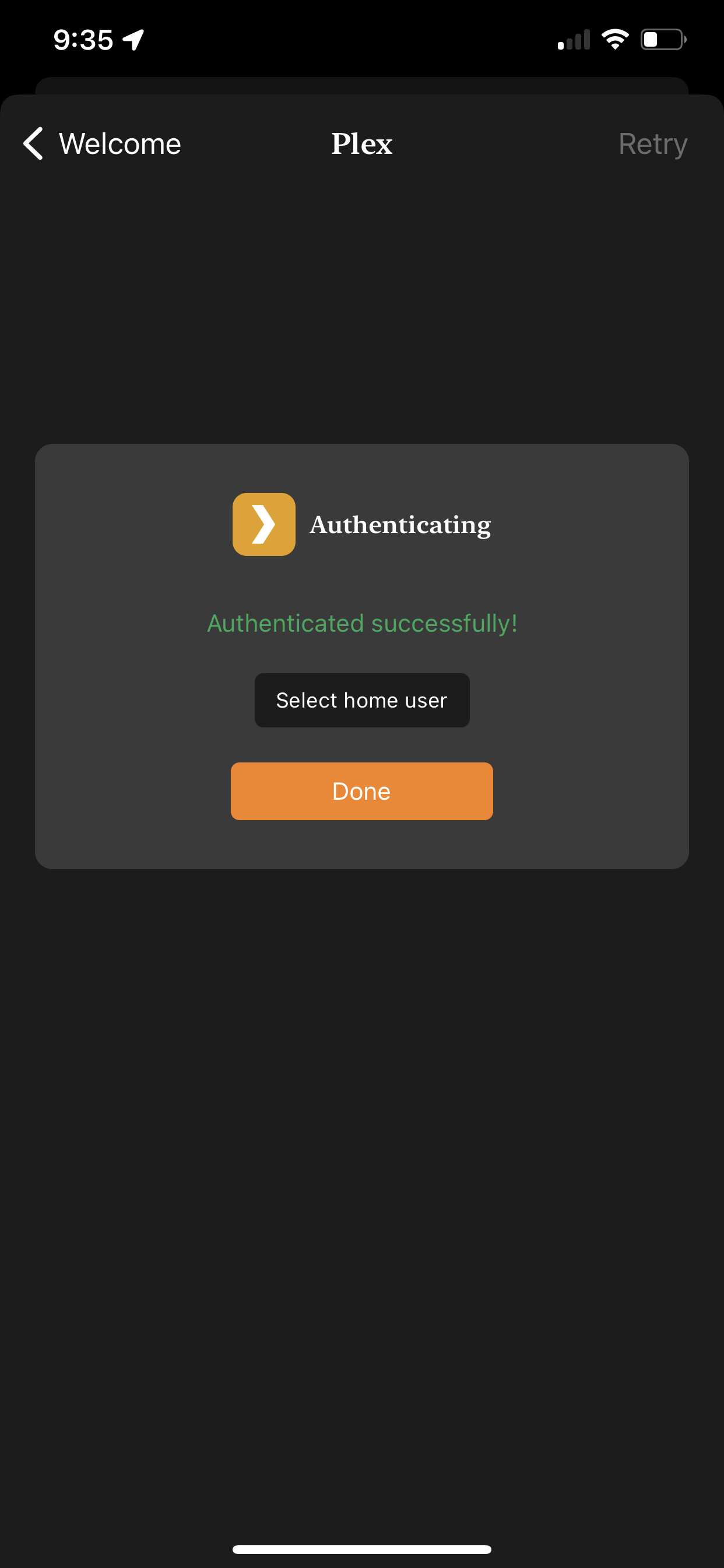
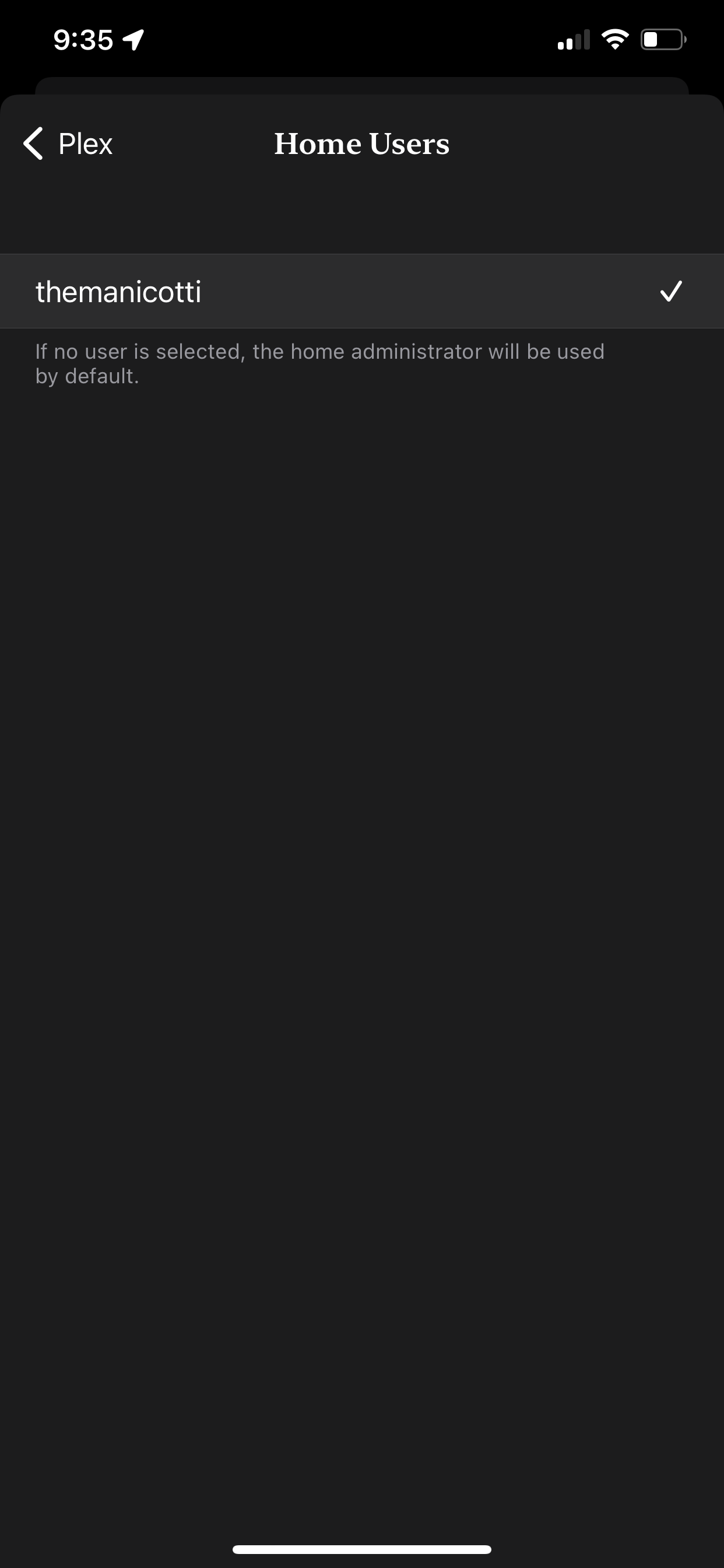
5. That's it! You can now listen to any of the audiobooks on Plex.