
Requests Tab
Here you'll find details regarding the Requests tab.
Getting started
When you first sign in, you'll be greeted with a login page. Your username and password will be the same as for the regular site (but they do NOT sync, so if you change your password for the main site, you'll need to manually change it here as well).
Once signed in, you'll see a screen that looks similar to this:

To request something be added to Plex, you can either search using the search bar, or browse the categories on the site. Once you find something you want to request, click on the poster and then click request on the item's description page.

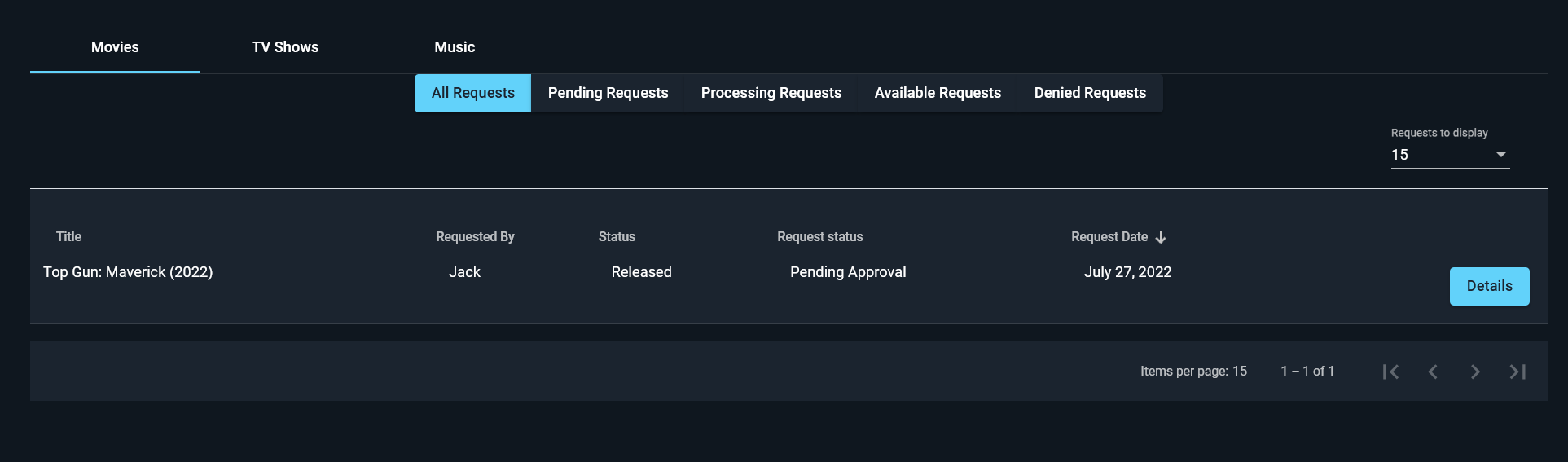
After the request has been submitted, you can check the status of your request by clicking "Requests" on the left edge of the screen. This will show you your pending, approved, denied, and available requests. When you request, it will be marked as "pending" and will send me an email letting me know about the request. After that, if the request is approved, it will be moved to "processing" while it downloads and you will receive an email letting you know it was approved. When the item has finished downloading and is on Plex, it will be labeled "available."
Changing your password
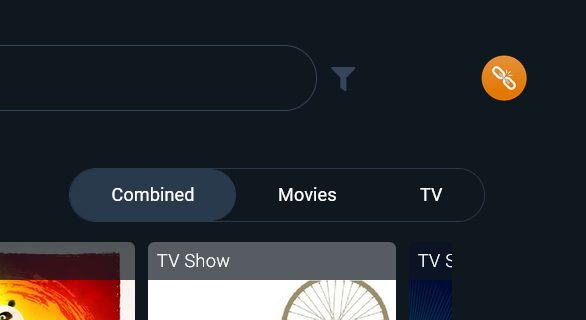
Unfortunately, the password you use for the main site and the requests portion do not sync. However, it is very simple to change your Requests password. To do so, click the chain-link icon in the top-right to view your profile.
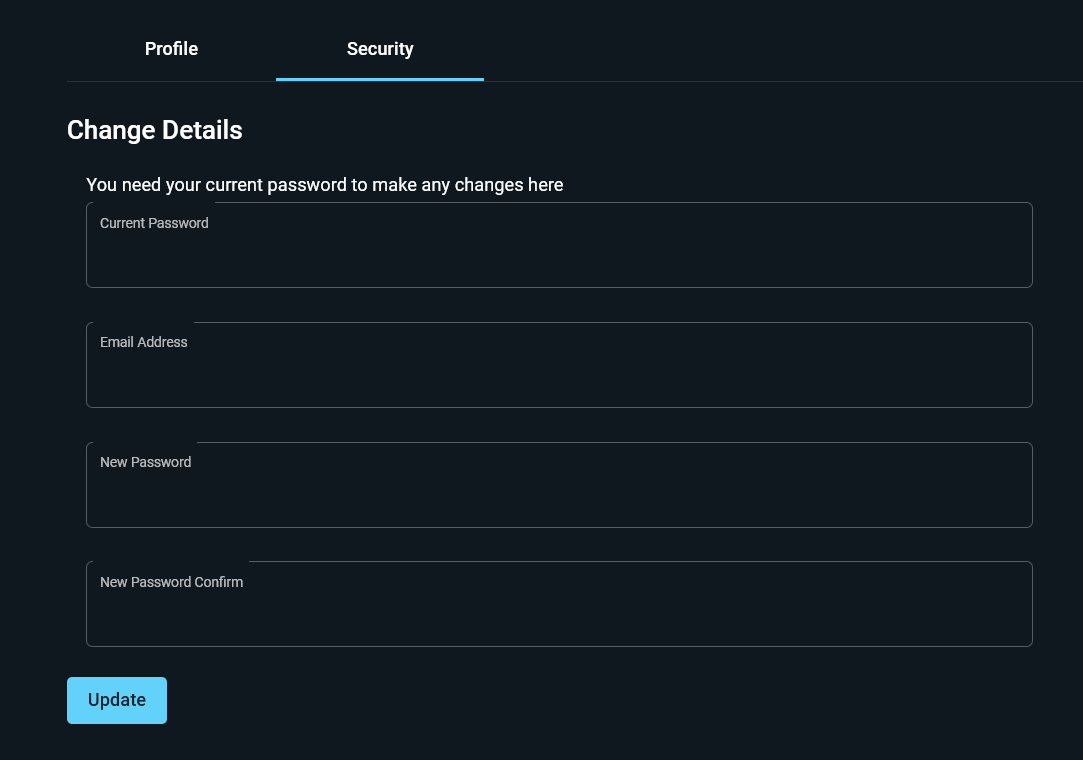
On your profile screen, select the "security" tab and enter your previous password and your new password, then click "update."
No Comments