
Setting up Plex
You'll need a Plex account of your own for me to share my library with you. You can create a Plex account here if needed. Once created, I can share my library with you. Follow the steps below to accept the invitation and configure Plex.
Accepting the Invitation
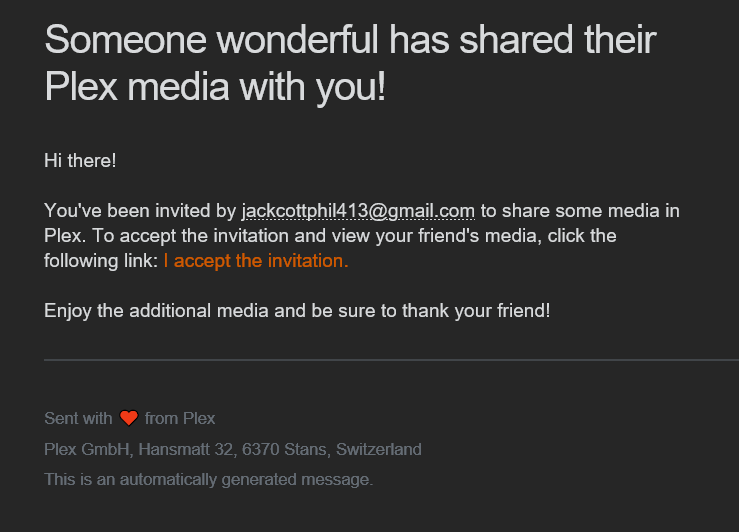
You'll receive the invitation via an email that looks like this:
Configuring your home page
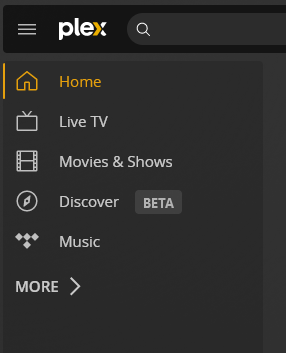
Once you accept the invitation, you'll have all my libraries on your Plex account, but they will not be on your home screen. To add them to your home screen, click the "More" option on the left edge of your screen.
Next, you'll see the libraries I've shared with you, as well as the default options that come from Plex. My recommendation is to remove the media from Plex and only have my shared libraries there to prevent confusion. To add/remove, hover over the library name, click the three dots, and select "pin"/"unpin" from the options.
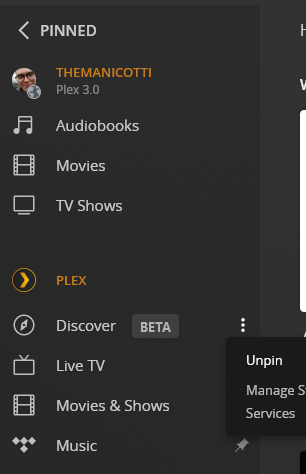
When you're done, your home screen should look like this:

Enabling original quality streaming
You will have the best experience if you stream original quality. Unfortunately, by default, you're not able to automatically play all videos at original quality. To fix this, navigate to Settings
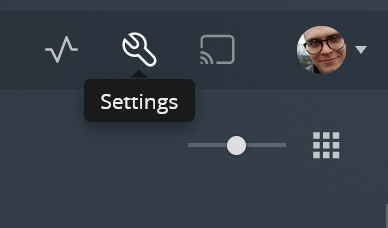
Then Select "Quality"
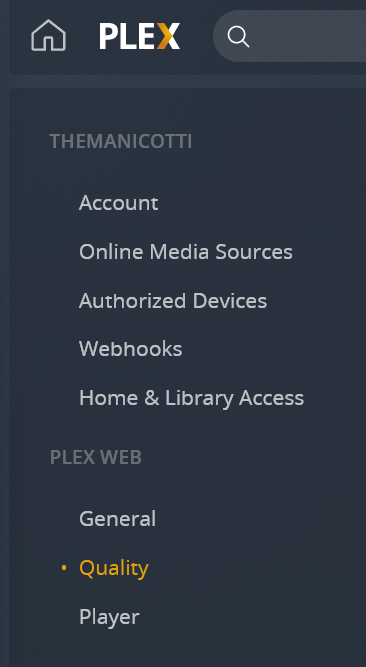
Make sure the options match these:
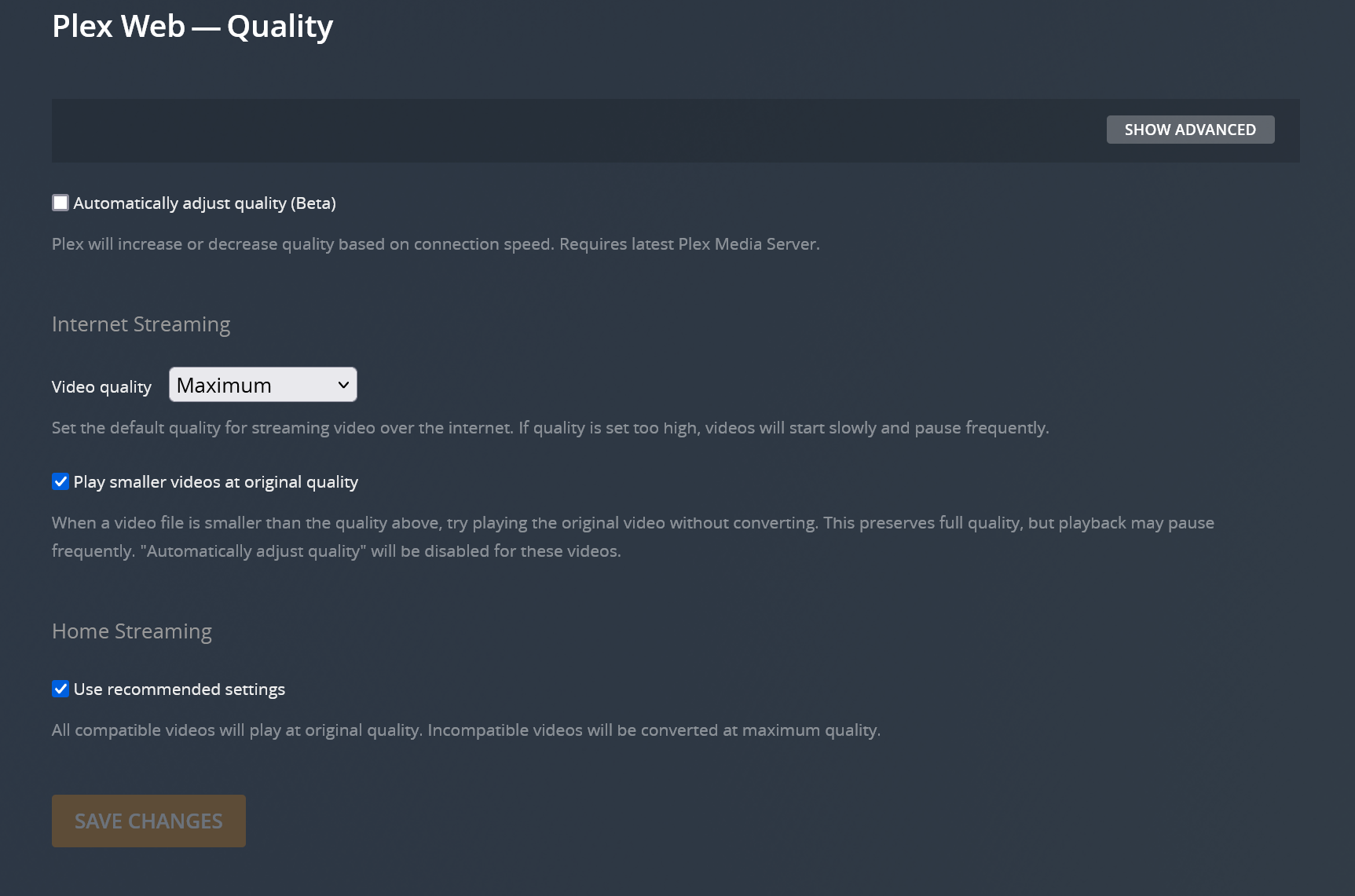
After that, your videos should default to original quality.
NOTE: These settings are in different places on different versions of the Plex app. If you're watching on a smart TV, tablet, or streaming device, the settings might be in a different place or have a slightly different name.
No Comments